
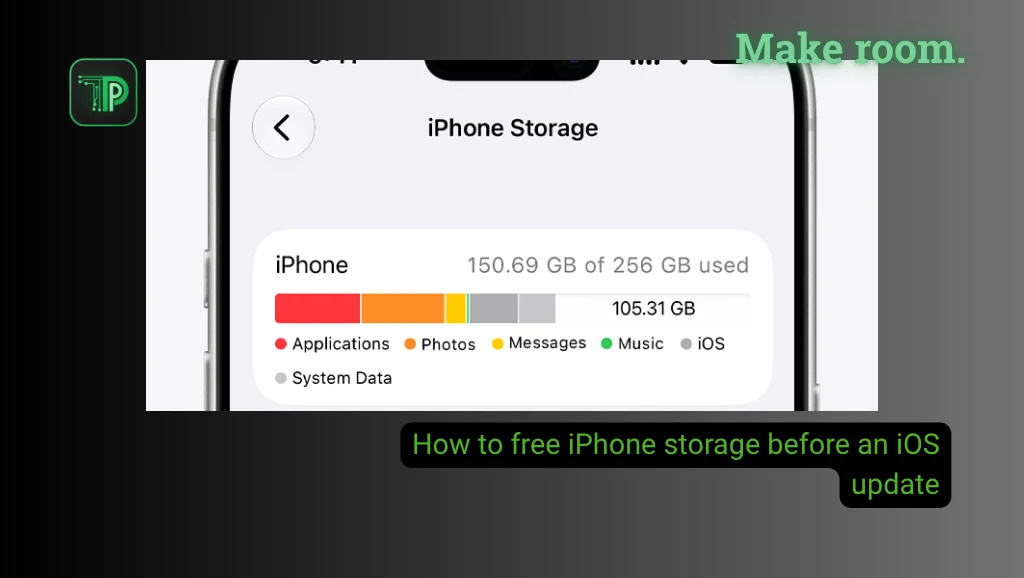
If your iPhone says there isn’t enough space for an iOS update, start by checking what is taking up room. You may be able to free space by offloading apps, removing downloads or reviewing large files. Back up anything important before deleting it.
The space needed varies by update and device. Check the message on your iPhone instead of relying on a fixed number of gigabytes. If you are updating to a new release, our look at Apple Intelligence storage on iOS 27 explains why some updates need more room.
Check your iPhone storage
Open Settings, tap General, then iPhone Storage. Give the storage chart a moment to load. You’ll see categories and a list of apps, along with recommendations where available.
Start with the largest items you recognize. A large app may contain downloads you can remove inside the app without deleting the app itself. Apple notes that iOS also manages temporary and cached files automatically, so the figures can change.
Back up before removing anything important
Make a current backup to iCloud or a computer before making major changes. Confirm that it completed and that you can access important photos, documents and account credentials. A backup is especially useful if you’re about to remove files you cannot easily download again.
Offload apps you don’t use
In iPhone Storage, select an app and tap Offload App if the option is available. Offloading removes the app itself but keeps its documents and data on the phone. You can reinstall the app later, although availability in the App Store can change.
Delete App is different: it removes the app and its related data from the device. Before deleting, check whether your information is synced to an account or needs to be backed up separately.
Remove downloads and large files
Look for offline movies, music, podcasts and maps inside the apps where you downloaded them. Removing a download can recover space while leaving the item available to stream or download again, subject to the service’s rules.
Check the Files app for large downloads you no longer need. Review message attachments too, but make sure you want to remove them before confirming. If files are stored in a cloud service, understand whether your chosen action removes only the local copy or deletes the cloud file as well.
Manage photos carefully
Photos and videos can take up a lot of space. If you use iCloud Photos, Optimize iPhone Storage keeps space-saving copies on the phone while full-resolution originals stay in iCloud, provided you have enough iCloud space.
Be careful: with iCloud Photos on, deleting a photo on one device removes it from your other devices signed in with the same Apple Account. Deleted items stay in Recently Deleted for 30 days. Check your backups before removing anything you want to keep.
Still short on space? Update with a computer
If an over-the-air update cannot install, you can update with a computer. On a Mac, connect the iPhone, open Finder, select the device, click General and choose Check for Update, as Apple explains for Finder. On a Windows PC, the Apple Devices app handles the update the same way.
When updating wirelessly, keep the iPhone connected to power, and use Wi-Fi where possible. If the update file is stuck, Apple’s update help explains how to delete the downloaded update from iPhone Storage and try again.
Frequently asked questions
Does buying iCloud storage add space to my iPhone?
No. iCloud storage is separate from the physical storage in your iPhone. It can help you store and sync content, but buying more does not increase the phone’s built-in capacity.
Will offloading an app delete my account?
Offloading generally preserves the app’s documents and data on the device. Whether you need to sign in again after reinstalling depends on the app, so keep your login details handy.
What if I still can’t update?
Check that the iPhone supports the update, restart it and try again. If there is still insufficient space, try the computer method or consult Apple Support. Avoid deleting irreplaceable files just to make an update fit.


