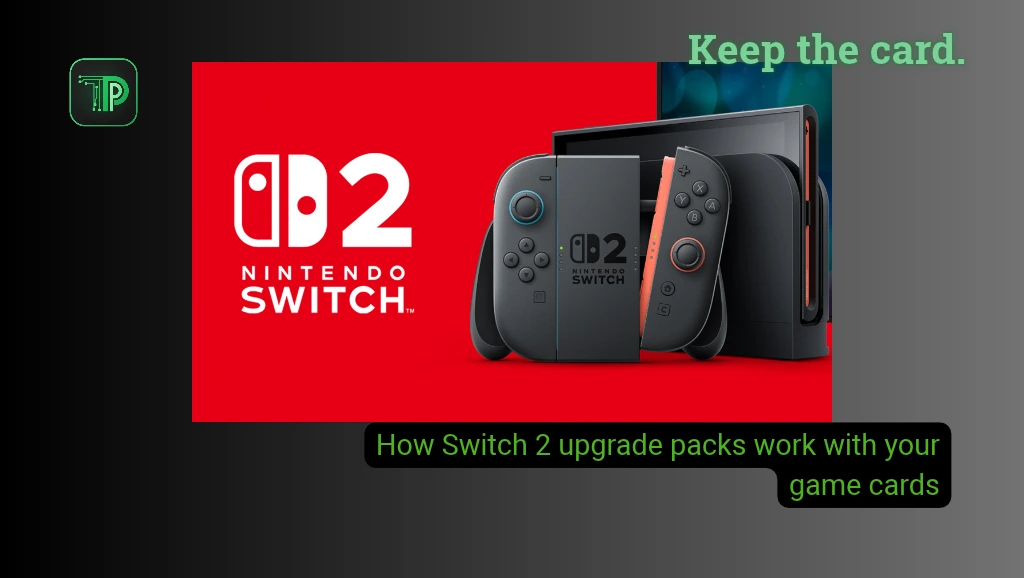
Yes. If your physical Nintendo Switch game has a Nintendo Switch 2 Edition upgrade pack, you can upgrade it without buying the whole game again. You need a Nintendo Switch 2, the original game card and the matching upgrade pack.
The upgrade does not turn your cartridge into a separate digital copy, so keep the card. Nintendo says upgrade packs are available only for select games, and what each one adds varies by title.
Before you buy an upgrade pack
- Confirm your exact game has a Switch 2 Edition upgrade pack. A game that runs on Switch 2 does not always have a paid upgrade.
- Check that your cartridge matches the store and account you will buy from. Imported cards are common in the Philippines, so read our guide to cartridge and eShop DLC compatibility first.
- Check the price on your own Nintendo Account. Prices and availability vary by game and store. The Nintendo eShop opened in the Philippines on Nov. 10, 2026.
- Make sure you have internet access and enough free storage for the upgrade pack and the game update.
How to install a Switch 2 upgrade pack for a cartridge
- On your Switch 2, open Nintendo eShop from the HOME Menu. Find the game’s upgrade pack, then buy and download it.
- Bought a code at a store? Redeem it in Nintendo eShop, then download the pack.
- Have Nintendo Switch Online + Expansion Pack? Certain upgrade packs download at no extra cost from the Nintendo Switch Online section of the eShop.
- Update the game. Select the game icon without starting it, press + or −, then choose Software Update and Via the Internet. Nintendo says the Switch version must be updated for the Switch 2 Edition to work.
- Insert your game card and start the game. The title screen should show “Nintendo Switch 2 Edition.”
Your cartridge still plays on the original Switch after the upgrade. The Switch 2 Edition features only work on Switch 2.
What if the upgrade does not show up?
- Install any system update in System Settings, under System and System Update.
- Update the game again from its HOME Menu icon.
- If you downloaded the pack with Expansion Pack, check that the console is online. You can redownload it from the Nintendo Switch Online section of the eShop.
- Check the eShop listing for a green “Preorder” label. A preordered pack may download early but will not work before its release date.
- Restart the console: hold the POWER Button for three seconds, then choose Power Options and Restart.
Still stuck? Search Nintendo Support for the game’s “Unable to Access DLC” article. For games from other publishers, contact the publisher with your game’s product code and purchase details.
Buying the game new? Check the box first
If you have not bought the game yet, the Switch 2 Edition box may be the simpler choice. Nintendo said physical Switch 2 Edition games carry the original game and its upgrade pack on the same Switch 2 game card, IGN reported. Some publishers sell download codes in a box instead, so read the packaging.
Frequently asked questions
Do I need the cartridge to play the upgraded version?
Yes. The upgrade pack adds to your original game, and the physical card is your copy of that game. Keep it inserted when you play.
Is every upgrade pack free with Nintendo Switch Online?
No. Only certain upgrade packs are included with Nintendo Switch Online + Expansion Pack. Check each game’s listing.
Can I still play my cartridge on the original Switch?
Yes. It plays as the original game. The Switch 2 Edition features only work on Switch 2.
Takeaway
A supported cartridge plus its matching upgrade pack gets you the Switch 2 Edition without buying the full game again. Check the game, the store region and the price first, then keep the card handy. For more Nintendo help, see our guide to changing your Nintendo eShop region.


